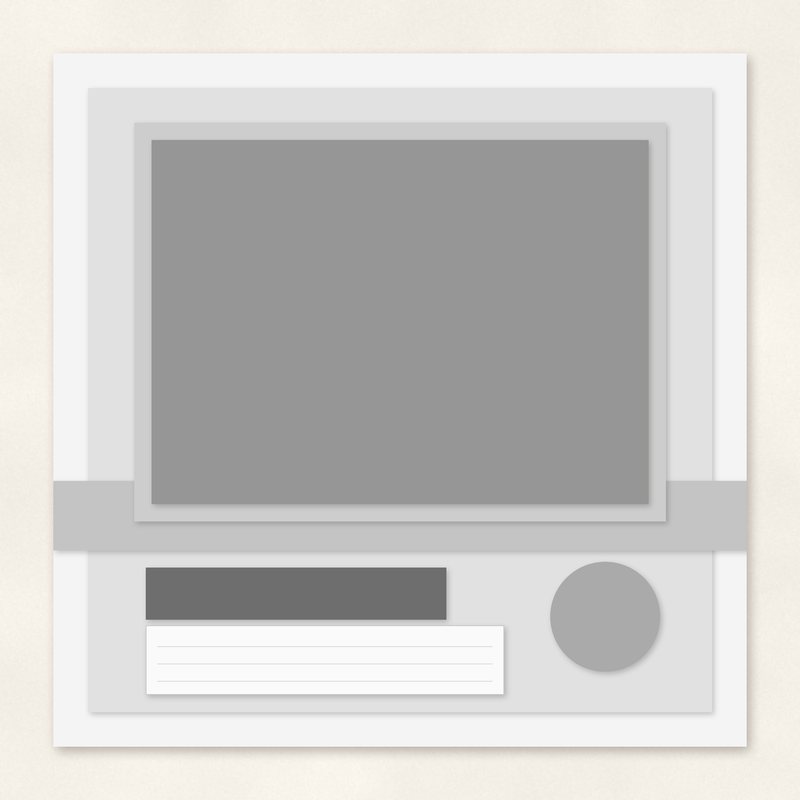
One Big Photo Template
A single 8.6 by 6.3 inch photo with a strip, title and journaling.
- Type
- Page template
- Inside
- 8 layers
- Format
- PNG layers, 300 dpi
- Size
- 12 x 12 in (3600 x 3600 px)
- Download
- ZIP, 621 KB
- Themes
- Everyday
Free for personal use and for layouts and cards you sell or give away. Please do not share or sell the files themselves; link to this page instead. Terms of use
About this freebie
The One Big Photo Template is a free layered page template for your everyday layouts. It features a single 8.6 by 6.3 inch photo spot, making it perfect for highlighting a favorite picture. The download includes 8 PNG layers sized at 3600 x 3600 pixels, which equals 12 x 12 inches at 300 dpi. You will find gray shapes marking spots for your background, paper blocks, a photo mat, a title, and journaling. A flattened guide JPG and a text file listing the layer order are also inside the 0.6 MB ZIP file.
Ideas for using it
- Showcase a beautiful landscape or group portrait. The large 8.6 by 6.3 inch photo spot gives your main image plenty of room to stand out on the page.
- Create a quick layout for a special birthday or holiday. Just clip festive patterned paper to the background block and paper strip layers.
- Document a daily routine or a simple family moment. Add a few sentences to the journaling spot to remember the story behind your picture.
How to use it
- If you are new to this type of file, read our guide on how to use page templates. It explains the basic steps for stacking your layers.
- Use clipping masks to attach your own digital papers and photos to the gray shapes. This keeps your items perfectly sized to the template blocks.
- The 8 PNG layers are separate files. Open them in your photo editor and stack them in the exact order listed in the included text file.
- Add a small digital flower, button, or staple to the element spot. This provides a nice finishing touch near your title and journaling.
- Place every PNG layer at the top left corner of a 12 x 12 inch, 300 dpi page and they line up.
- Clip a paper or a photo to each gray shape, then delete or hide the gray.
What is inside the ZIP
One folder named one-big-photo-template with the files below (file names start with one-big-photo-template-), plus README.txt and LICENSE.txt.
| File | What | Pixels | Type | Size |
|---|---|---|---|---|
| layer-00-background.png | background | 3600 x 3600 px (12 x 12 in) | PNG | 59 KB |
| layer-01-paper-background-block.png | paper-background-block | 3600 x 3600 px (12 x 12 in) | PNG | 58 KB |
| layer-02-paper-strip.png | paper-strip | 3600 x 3600 px (12 x 12 in) | PNG | 51 KB |
| layer-03-photo-mat.png | photo-mat | 3600 x 3600 px (12 x 12 in) | PNG | 55 KB |
| layer-04-photo-1.png | photo-1 | 3600 x 3600 px (12 x 12 in) | PNG | 55 KB |
| layer-05-title.png | title | 3600 x 3600 px (12 x 12 in) | PNG | 51 KB |
| layer-06-journaling.png | journaling | 3600 x 3600 px (12 x 12 in) | PNG | 51 KB |
| layer-07-element-spot.png | element-spot | 3600 x 3600 px (12 x 12 in) | PNG | 54 KB |
| preview-flat.jpg | flattened guide | 3600 x 3600 px | JPG | 183 KB |
| layer-order.txt | layer order | TXT | 1 KB |
You may also like
More page templates


Tutorials for this freebie
- How to use digital scrapbook page templatesLearn how to use digital scrapbook page templates. This guide covers stacking PNG layers, clipping masks, and adding…
- Clipping masks explained (and the shortcut in every program)Learn how to use clipping masks in digital scrapbooking. Find the shortcuts for Photoshop, Elements, Affinity, GIMP…
- How to add realistic drop shadowsLearn how to add realistic drop shadows to your digital scrapbook pages with the right settings for papers, flowers and…